How Often Do You Need to Train Employees on Cybersecurity Awareness?

Free illustrations of Security

You’ve completed your annual phishing training. This includes teaching employees how to spot phishing emails. You’re feeling good about it. That is until about 5-6 months later. Your company suffers a costly ransomware infection due to a click on a phishing link.

You wonder why you seem to need to train on the same information every year. But you still suffer from security incidents. The problem is that you’re not training your employees often enough.

People can’t change behaviors if training isn’t reinforced. They can also easily forget what they’ve learned after several months go by.

So, how often is often enough to improve your team’s cybersecurity awareness? It turns out that training every four months is the “sweet spot.” This is when you see more consistent results in your IT security.

Why Is Cybersecurity Awareness Training Each 4-Months Recommended?

So, where does this four-month recommendation come from? There was a study presented at the USENIX SOUPS security conference recently. It looked at users’ ability to detect phishing emails versus training frequency. It looked at training on phishing awareness and IT security.

Employees took phishing identification tests at several different time increments:

  • 4-months
  • 6-months
  • 8-months
  • 10-months
  • 12-months

The study found that four months after their training scores were good. Employees were still able to accurately identify and avoid clicking on phishing emails. But after 6-months, their scores started to get worse. Scores continued to decline the more months that passed after their initial training.

To keep employees well prepared, they need training and refreshers on security awareness. This will help them to act as a positive agent in your cybersecurity strategy.

Tips on What & How to Train Employees to Develop a Cybersecure Culture

The gold standard for security awareness training is to develop a cybersecure culture. This is one where everyone is cognizant of the need to protect sensitive data. As well as avoid phishing scams, and keep passwords secured.

This is not the case in most organizations, According to the 2021 Sophos Threat Report. One of the biggest threats to network security is a lack of good security practices.

The report states the following,

“A lack of attention to one or more aspects of basic security hygiene has been found to be at the root cause of many of the most damaging attacks we’ve investigated.”

Well-trained employees significantly reduce a company’s risk. They reduce the chance of falling victim to any number of different online attacks. To be well-trained doesn’t mean you have to conduct a long day of cybersecurity training. It’s better to mix up the delivery methods.

Here are some examples of engaging ways to train employees on cybersecurity. You can include these in your training plan:

  • Self-service videos that get emailed once per month
  • Team-based roundtable discussions
  • Security “Tip of the Week” in company newsletters or messaging channels
  • Training session given by an IT professional
  • Simulated phishing tests
  • Cybersecurity posters
  • Celebrate Cybersecurity Awareness Month in October

When conducting training, phishing is a big topic to cover, but it’s not the only one. Here are some important topics that you want to include in your mix of awareness training.

Phishing by Email, Text & Social Media

Email phishing is still the most prevalent form. But SMS phishing (“smishing”) and phishing over social media are both growing. Employees must know what these look like, so they can avoid falling for these sinister scams.

Credential & Password Security

Many businesses have moved most of their data and processes to cloud-based platforms. This has led to a steep increase in credential theft because it’s the easiest way to breach SaaS cloud tools.

Credential theft is now the #1 cause of data breaches globally. This makes it a topic that is critical to address with your team. Discuss the need to keep passwords secure and the use of strong passwords. Also, help them learn tools like a business password manager.

Mobile Device Security

Mobile devices are now used for a large part of the workload in a typical office. They’re handy for reading and replying to an email from anywhere. Most companies will not even consider using software these days if it doesn’t have a great mobile app.

Review security needs for employee devices that access business data and apps. Such as securing the phone with a passcode and keeping it properly updated.

Data Security

Data privacy regulations are something else that has been rising over the years. Most companies have more than one data privacy regulation requiring compliance.

Train employees on proper data handling and security procedures. This reduces the risk you’ll fall victim to a data leak or breach that can end up in a costly compliance penalty.

Need Help Keeping Your Team Trained on Cybersecurity?

Take training off your plate and train your team with cybersecurity professionals. We can help you with an engaging training program. One that helps your team change their behaviors to improve cyber hygiene.

WRLD Tech has virtual training in multiple languages and provides on-site training complimentary of many of our MSP packages throughout Texas, specifically the Dallas-Fort Worth Metroplex and other metroplexes where we have active team members such as Austin, Houston, and San Antonio. Contact us today for a no-strings consultation or speak to your account representative about these services if you, for example, currently host your website with the WRLD.host datacenter and you would like to learn more (plus, discounts for multiple products!).

Featured Image Credit

Home Security: Why You Should Put IoT Devices on a Guest Wi-Fi Network

Free photos of Computer

The number of internet-connected devices in homes has been growing. It’s increased exponentially over the last decade. A typical home now has 10.37 devices connected to the internet. PCs and mobile devices make up a little over half of those and the rest are IoT devices.

IoT stands for Internet of Things. It means any other type of “smart device” that connects online. IoT devices in a home can be everything from your streaming stick to your smart refrigerator. Smart baby monitors and Alexa voice assistants are also IoT.

There’s also been another change that has happened over the last couple of years. It has been the increase in remote and hybrid work. The pandemic caused a major shift in where we work, turning the standard office paradigm on its head.

Now, working remotely has become the norm for many companies around the world. This has put increased scrutiny on the security of all those IoT devices. They are now sharing a Wi-Fi network with business data and devices.

Here are two alarming statistics that illustrate the issue with IoT security:

  • During the first six months of 2021, the number of IoT cyberattacks was up by 135% over the prior year.
  • It’s estimated that over 25% of cyberattacks against businesses involve IoT devices

Hackers Use IoT Devices to Get to Computers & Smartphones

Smart devices are a risk to any other device on a network. They are typically easier to breach. So, hackers will use them as a gateway into more sensitive devices.

A criminal may not care about the shopping list stored in your smart refrigerator. But they’ll breach that IoT device to see what other devices are on the same network.

The hacker can then use sharing and permissions that are often present on home networks. Through these, they gain access to your work computer or mobile device. These devices hold important data, and access to personal details.

Why are IoT devices less secure than computers and smartphones? Here are a few reasons:

  • They usually won’t have antivirus or anti-malware capabilities
  • Users often don’t update IoT devices regularly
  • They have basic interfaces which can hide a breach of the device
  • People often don’t change the default device username and password.
  • Sharing settings on IoT devices makes them easier to hack

Improve Security by Putting IoT on a Separate Wi-Fi Network

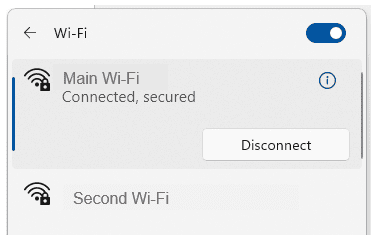
Just about all modern routers will have the ability to set up a second Wi-Fi network, called a “guest network.” This shows up when you connect to Wi-Fi as a separate Wi-Fi that a device can use to get online.

Separate Wi-Fi

By putting all your IoT devices on a separate network you improve security. You cut that bridge that hackers use to go from an IoT device to another device on the same network. Such as those that hold sensitive information (computers and mobile devices).

In fact, when you separate those two (IoT devices and sensitive-info devices) a hacker can’t see all. If they breach one of your smart devices, they can’t tell you have a PC or smartphone. This is because they’re on the other network.

This is an important layer of security to use. Whether you’re a remote worker or use your computer for home budgeting and banking, it can help. All PCs and smartphones usually contain access to online banking or personal information.

Here are the steps to take to separate your IoT devices. (Note, you can also have this done by us, we’ll be happy to handle all these steps for you.)

  • Step 1: Log into your router settings.
  • Step 2: Look for an area that allows you to set up a guest network. This will be different for each router, so you may need to access a help guide online.
  • Step 3: Set up the guest network according to the router prompts. Make sure to use a strong password.
  • Step 4: Edit the password for your existing network. This keeps IoT devices from automatically reconnecting to it.
  • Step 5: Connect all IoT devices in your home to the new guest network.
  • Step 6: Reconnect your sensitive devices (computers, smartphones) to the preexisting network. Use the new password.

As you add any new devices to your home network, make sure to connect them to the appropriate network. This keeps the layer of security effective.

One more tip: When naming your Wi-Fi networks, don’t use descriptive names. This includes things like “IoT network” or your name, address, or router model name.

It’s best to use names that won’t give the hackers valuable information they can use in attacks.

Need Help Upgrading Your Home Cybersecurity?

With so many remote workers, hackers have begun targeting home networks. They know they can contain sensitive business as well as personal data. Don’t leave yourself open to a breach. Schedule a home internet security review today!


Featured Image Credit

This Article has been Republished with Permission from The Technology Press.

Get More Unplugged Laptop Time with These Battery-Saving Hacks

turn-on laptop displaying 97 percent battery

One of the big draws of a laptop computer is that you can use it anywhere. You don’t need to have it plugged in all the time because it has an internal battery.

Your laptop may start out with several hours of battery life when you first buy it. But the lifespan can get shorter as time goes by and battery health takes a hit. Sometimes this can be due to a lack of PC maintenance. Other times, it’s due to the environments the laptop is subject to (such as a hot car).

Seeing your laptop’s battery capacity shrink can be frustrating. But there are several things you can do to increase the time you can go without needing to plug it in.

Lower the Display Brightness

The brighter your display is, the more battery power it’s taking. Have you ever hit the automated low battery mode on a laptop? Then you know you immediately notice a difference in brightness. This is because that setting turns down the brightness. It’s one of the ways to reduce battery consumption.

You can turn down the brightness of your screen in your display settings. You can also use the brightness keys that are usually in the top row of keys on a laptop keyboard.

Reduce PC Battery Use in Power/Sleep Settings

Here’s one way to increase the time you can use your unplugged laptop without a power source. Adjust some of its power and sleep settings.

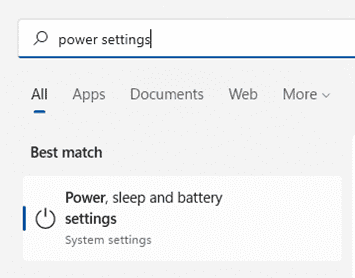
Power Settings

If you’re using Windows, open the search on the Task Bar. Type in “power settings.” This directs you to the power, sleep, and battery settings in your system settings.

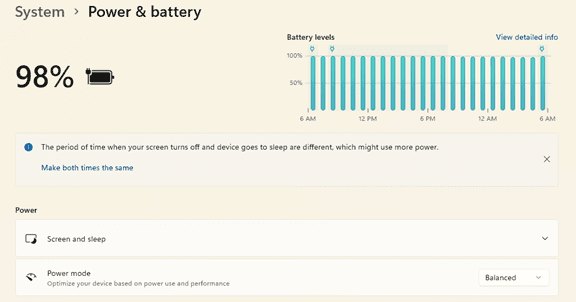
Look for any tips at the top for increasing battery longevity. Such as, making the time your screen goes dark after inactivity and the time it goes to sleep the same.

Then review the settings, such as Screen and sleep, and Power mode. Find the ones that will reduce your PC’s battery consumption. This will extend the time you can go without a new charge.

Power & Battery

Enable Battery-Saver Mode

You don’t have to wait until your PC hits 10% for it to go into battery-saver mode. You can control this and enable it yourself in your system settings.

Do you know you’re going to be without a power source for a while? Put your PC in power-saver or battery-saver mode right away, so you can extend the charge as long as possible.

Use the Manufacturer’s Battery Calibration Tool

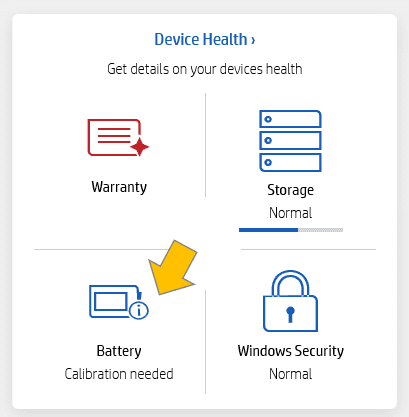
Manufacturers will have their own PC maintenance tools installed. You can use for battery calibration. Sometimes calibrating the battery can correct an issue with a battery life. Especially if life has gotten shorter than when you first purchased your laptop.

Look for a manufacturer’s built-in maintenance app. It will usually be on the Task Bar unless you’ve hidden it. When you open that, you may find that you need to do a calibration or other maintenance task.

Battery Calibration Tool

Get a Computer Tune-up

If you have processes running in the background it can sap your battery life. Processes that aren’t needed can often run anyhow. Getting a computer tune-up from your IT provider can solve a lot of different issues. This includes such as computers that get sluggish, and often, the battery life too.

Consider Using Microsoft Edge Browser for Its Efficiency Settings

If like most people, you keep a lot of browser tabs open while you’re working on your PC. They could be sapping your battery power.

Consider trying Microsoft’s Edge browser. It has been gaining in popularity ever since it incorporated the Chromium engine. This is the same one Chrome uses.

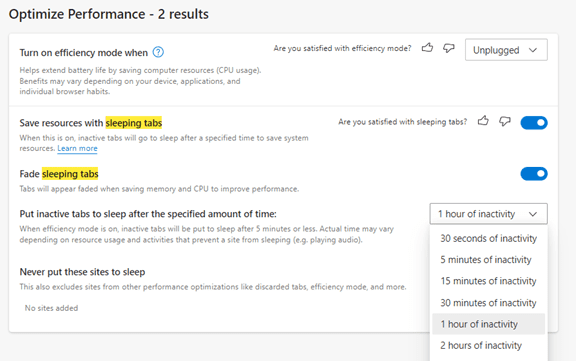
The browser has several power-saving features that you can enable in your settings. Search “sleeping tabs” in Edge settings to find these. They include:

  • Enable efficiency mode (choose from the available options)
  • Enable Sleeping Tabs and fade them when asleep
  • Choose when you would like to put inactive browser tabs to sleep to conserve battery power.
Microsoft Edge Browser Features

Turn Off Unnecessary Apps Hogging Battery Power

Check the apps that are running on your PC in the Task Manager. Do you really need them all to run when you’re unplugged and trying to conserve battery power?

Often processes that aren’t 100% necessary all the time will be running. Such as an update service or cloud storage syncing app. Close the apps you don’t need to use at that time to lengthen battery life.

Keep Your PC Out of Too Much Heat or Freezing Temps

Both excess heat and freezing temperatures can be bad for a computer. This includes shortening the battery life.

You should never leave your laptop in a car on a hot day or when it’s freezing outside. Also, it might not seem particularly hot to you, but if it’s sunny, the inside of a vehicle can heat up pretty quickly. Be aware of the temperature extremes that your laptop is subject to.

Looking for a PC Tune-Up or Battery Replacement?

We can help you with a full system tune-up or a laptop battery replacement if needed. Don’t struggle with short battery life when you can have that fixed in no time! Give us a call today and let’s chat.


Featured Image Credit

This Article has been Republished with Permission from The Technology Press.

5 Exciting Ways Microsoft 365 Can Enable the Hybrid Office

gray microsoft surface laptop computer on white table

“Hybrid office” is the new buzzword you’ll hear used in business discussions. It’s the mix of having employees both working at the office and working from home. This has become more than a buzzword and is now the reality for many companies.

There was a survey of employees with remote-capable jobs. The survey found that as of February of 2022, 42% of them were working a hybrid schedule. And 39% were working from home full time.

The global pandemic brought on this hybrid office transition. It forced companies to operate with teams that could no longer safely come to the office. During this time, employers and employees experienced the benefits of hybrid work firsthand.

These benefits of remote teams included cost savings for both workers and employers. It also allowed the company to operate with more flexibility. Improved worker morale was another advantage.

One fact surprised many employers that feared remote work would tank productivity. It actually increased in many circumstances.

63% of high-growth companies use a “productivity anywhere” hybrid work approach.

In order for hybrid teams to be productive, they need to stay connected. No matter where they work, the right technology tools should enable them.

One of the leaders in this space has been Microsoft. The company plans to add several exciting updates this year. These will provide more tools for companies to enable their hybrid teams.

Here are some of the ways you can use Microsoft 365 to optimize a productive hybrid office. Note, that some of these features are already out, and others should release later this year.

1. Microsoft Teams & Expanded Features

Microsoft Teams is much more than a team messaging app. The application combines the best features of virtual video meetings and messaging channels. It brings them together into a platform designed to be a secure online work hub.

MS Teams has come a long way in the last five years. And the company continues to add more features to enable hybrid offices. Some of the recent feature updates include:

  • The ability to do webinar registration
  • Presenter modes that provide a more professional virtual presence
  • Increased security through features like smart links and smart attachments
  • A full business VoIP phone system add-on
  • The addition of a “metaverse” component called Mesh for Teams

2. New Meeting Options for RSVP in Outlook

One of the challenges, when everyone isn’t working in the same place, is how to know when to “clock in” and “clock out.” As well as how to let colleagues know whether you are working at home next week or the office.

To help hybrid teams better coordinate, Outlook is getting an update. It will allow users to RSVP to meetings. This can let team members know whether they are attending virtually or in person.

3. Better Framing for More Engaging Meetings

One thing that can distract from the purpose of a meeting is someone’s background at home. Positioning of the camera can also be problematic. One person might have their face taking up 80% of the video screen. Another may only take up 20% because they’re sitting farther away from their PC’s camera.

A new Surface Hub 2S Smart Camera will allow for better face framing. This will affect when people are meeting virtually in Microsoft Teams. Features include adjusting the room view so people’s faces will be clearer. As well as having more consistent sizing.

The video display will also automatically adjust as people join or leave a physical room.

4. Get Better Control of Your Video Using PowerPoint to Present

People often share a screen in a video call and present a PowerPoint presentation. It can be difficult to keep everyone as engaged as when you’re presenting in person.

For example, in person, you can maintain eye contact. People can clearly see your facial expressions as you emphasize various things. That’s not always the case when presenting virtually. The app may push your video feed into a tiny box.

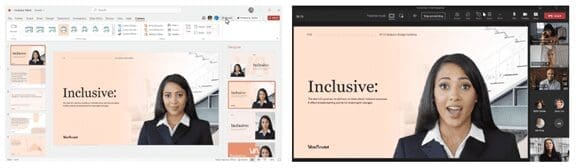
There’s a new upcoming feature for Teams called Cameo. It will allow you to seamlessly integrate PowerPoint with MS teams. You can decide exactly how you want your video feed to appear in relation to your presentation.

Another addition is Recording Studio. This new feature for PowerPoint allows you to record professional-looking on-demand videos. You can do it right inside the app.

Cameo
Cameo in PowerPoint & MS Teams

5. Get Help With Your Presentation Skills

Microsoft has poured a lot of AI capabilities into Microsoft 365 over the last several years. One that will soon help you deliver better virtual presentations is Speaker Coach.

This is a private and personalized coach. It can help you hone your presentation skills. This improves your switch to the differences between presenting online versus in person.

Some of the feedback it can provide include:

  • Use of repetitive language
  • Use of filler words (Ummm)
  • Speaking pace
  • Pausing for input
  • Intonation
  • Speaker overlaps
  • And more

Ask Us About Improving Your Hybrid Office Capabilities with Microsoft 365

Microsoft 365 has a ton of helpful features. But it does help to have an expert guide to help you navigate these capabilities. Contact us today to set up a chat about how Microsoft 365 can help your business grow.


Featured Image Credit

This Article has been Republished with Permission from The Technology Press.

Which Form of MFA Is the Most Secure? Which Is the Most Convenient?

Registration, Log In, Keyboard, Hand, Write

Credential theft is now at an all-time high and is responsible for more data breaches than any other type of attack.

With data and business processes now largely cloud-based, a user’s password is the quickest and easiest way to conduct many different types of dangerous activities.

Being logged in as a user (especially if they have admin privileges) can allow a criminal to send out phishing emails from your company account to your staff and customers. The hacker can also infect your cloud data with ransomware and demand thousands of dollars to give it back.

How do you protect your online accounts, data, and business operations? One of the best ways is with multi-factor authentication (MFA).

It provides a significant barrier to cybercriminals even if they have a legitimate user credential to log in. This is because they most likely will not have access to the device that receives the MFA code required to complete the authentication process.

What Are the Three Main Methods of MFA?

When you implement multi-factor authentication at your business, it’s important to compare the three main methods of MFA and not just assume all methods are the same. There are key differences that make some more secure than others and some more convenient.

Let’s take a look at what these three methods are:

SMS-based

The form of MFA that people are most familiar with is SMS-based. This one uses text messaging to authenticate the user.

The user will typically enter their mobile number when setting up MFA. Then, whenever they log into their account, they will receive a text message with a time-sensitive code that must be entered. 

On-device Prompt in an App

Another type of multi-factor authentication will use a special app to push through the code. The user still generates the MFA code at login, but rather than receiving the code via SMS, it’s received through the app.

This is usually done via a push notification, and it can be used with a mobile app or desktop app in many cases.

Security Key

The third key method of MFA involves using a separate security key that you can insert into a PC or mobile device to authenticate the login. The key itself is purchased at the time the MFA solution is set up and will be the thing that receives the authentication code and implements it automatically.

The MFA security key is typically smaller than a traditional thumb drive and must be carried by the user to authenticate when they log into a system.

Now, let’s look at the differences between these three methods.

Most Convenient Form of MFA?

Users can often feel that MFA is slowing them down. This can be worse if they need to learn a new app or try to remember a tiny security key (what if they lose that key?).

This user inconvenience can cause companies to leave their cloud accounts less protected by not using multi-factor authentication.

If you face user pushback and are looking for the most convenient form of MFA, it would be the SMS-based MFA.

Most people are already used to getting text messages on their phones so there is no new interface to learn and no app to install.

Most Secure Form of MFA?

If your company handles sensitive data in a cloud platform, such as your online accounting solution, then it may be in your best interest to go for security.

The most secure form of MFA is the security key.

The security key, being a separate device altogether, won’t leave your accounts unprotected in the event of a mobile phone being lost or stolen. Both the SMS-based and app-based versions would leave your accounts at risk in this scenario.

The SMS-based is actually the least secure because there is malware out there now that can clone a SIM card, which would allow a hacker to get those MFA text messages.

A Google study looked at the effectiveness of these three methods of MFA at blocking three different types of attacks. The security key was the most secure overall.

Percentage of attacks blocked:

  • SMS-based: between 76 – 100% 
  • On-device app prompt: between 90 – 100%
  • Security key: 100% for all three attack types

What’s in Between?

So, where does the app with an on-device prompt fit in? Right in between the other two MFA methods.

Using an MFA application that delivers the code via push notification is more secure than the SMS-based MFA. It’s also more convenient than needing to carry around a separate security key that could quickly become lost or misplaced.

Looking for Help Setting Up MFA at Your Company?

Multi-factor authentication is a “must-have” solution in today’s threat climate. Let’s discuss your barrier points and come up with a solution together to keep your cloud environment better secured.


Featured Image Credit

This Article has been Republished with Permission from The Technology Press.

Top 5 Mobile Device Attacks You Need to Watch Out For

Displaying Top 5 Mobile Device Attacks You Need to Watch Out - raw image.jpg

Smartphones and tablets are often the preferred device for communications, web searching, and accessing many types of apps. They’re more portable and can be used from anywhere.

We’re seeing the takeover of many activities that used to be performed on traditional computers. Now, people are using mobile devices instead.

For example, Microsoft estimates that up to 80% of the workload in many enterprise organizations is now done via mobile devices. Over half of all web searches are also now conducted from a mobile device rather than a desktop PC.

This has caused mobile devices to become more targeted over the past few years. As hackers realize they’re holding many of the same sensitive information and app access as PCs, they’ve been creating mobile malware and other exploits to breach mobile devices.

In 2020, approximately 36.5% of organizations were impacted by mobile malware and 2.5 million people unknowingly downloaded multiple mobile adware apps.

It’s important to start treating mobile devices in the same way as you do computers when it comes to their security. Smartphones and tablets need the same types of security precautions in place, including:

  • Antivirus/anti-malware
  • DNS filtering
  • Automated OS and app updates
  • Managed backup

You need to be on the lookout for the most prevalent mobile device threats that allow your data to be leaked or breached. Here’s a roundup of what those are.

1. Mobile Malware Hidden in Apps

It’s not easy at first glance to tell the difference between a legitimate free app and one that has malware hidden inside.

Scammers will use the same types of flashy graphics, and the app may even have a high star rating (most likely boosted through suspicious means). The app may even do what it says it will do when downloaded.

But malware can be hidden in the background, infecting a device as soon as the app is installed. And many of these apps will hide once on your phone or tablet by using the icon of a common default system app (like settings or calendar).

Mobile malware can include all the same types of malware that can infect a computer, such as ransomware, adware, spyware, trojans, and more.

2. Unprotected Communications

Have you ever sent someone a password or credit card details over a text message or messaging app? Did you check to see if the communication was encrypted?

Many users will use various methods of communication from their mobile devices without knowing how secure those methods are. If sensitive information is transmitted and it’s not encrypted, then a hacker could easily intercept it.

3. Public Wi-Fi & Man-in-the-Middle Attacks

Public Wi-Fi has long been known to be non-secure, yet people still use it when it’s available. They want to save their mobile minutes or get a faster connection.

75% of people admit to connecting to email when on public Wi-Fi. Other activities people will do is sign into apps (even sensitive ones like online banking), and shop online, entering credit card details.

If you’re on public Wi-Fi, then you’re at high risk of a man-in-the-middle attack. This is when a hacker connects to the same network and looks for victims with unprotected communications. They can then capture any type of data they’re transmitting.

One way to safely connect to public Wi-Fi is to use a VPN app, which will encrypt your communications.

4. Juice Jacking on Public USB Charging Stations

Another public mobile breach danger is public USB charging stations. These are often welcome sights especially if you’re low on battery power. However, hackers can infect public USB charging ports with malware and set up fake charging stations in public areas.

Then, when you insert your USB cord to charge your device, the malware is copying all the data on your phone and/or infecting it with malicious code. See, USB cables aren’t just for charging, they are also used for data transmission.

It’s best to avoid public USB charging ports and charge with your power adapter that plugs into an outlet instead. You can also buy a “charge-only” USB cord to use if USB charging is your only option.

5. Non-Updated Devices

Approximately 40% of Android devices are running outdated operating systems that no longer get vital security updates.

When your mobile device is not kept updated, then it’s easier for a hacker to use an exploit that takes advantage of a code vulnerability in the OS or one of the installed apps.

Many companies aren’t paying attention to how many employees’ work devices are running current operating systems, which puts their networks at higher risk of a breach.

You should ensure that all your apps and your OS are kept updated because many of these updates include critical security patches.

Ask Us About Mobile Device Security Solutions

With mobile devices handling so much of the computing workload these days, it’s vital they’re properly protected. Contact us to discuss mobile security and management solutions.


Featured Image Credit

This Article has been Republished with Permission from The Technology Press.

Signs That Your Computer May Be Infected with Malware

Hacker, Hack, Anonymous, Hacking, Cyber, Security

Approximately 34% of businesses take a week or longer to regain access to their data and systems once hit with a malware attack.

Malware is an umbrella term that encompasses many different types of malicious code. It can include:

  • Viruses
  • Ransomware
  • Spyware
  • Trojans
  • Adware
  • Key loggers
  • And more

The longer that malware sits on your system unchecked, the more damage it can do. Most forms of malware have a directive built in to spread to as many systems as possible. So, if not caught and removed right away, one computer could end up infecting 10 more on the same network in no time.

Early detection is key so you can disconnect an infected device from your network and have it properly cleaned by a professional.

Keep an eye out for these key warning signs of malware infection so you can jump into action and reduce your risk.

Strange Popups on Your Desktop

Some forms of malware can take on the disguise of being an antivirus app or warranty notice that pops up on your screen. Hackers try to mimic things that users may have seen from a legitimate program, so they’ll be more apt to click without thinking.

If you begin to see a strange “renew your antivirus” subscription alert or a warranty renewal that doesn’t quite make sense, these could be signs that your PC has been infected with adware or another type of malware.

New Sluggish Behavior

Computers can become sluggish for a number of reasons, including having too many browser tabs open at once or running a memory-intensive program. But you’ll typically know your computer and the types of things that slow it down.

If you notice new sluggish behavior that is out of the ordinary, this could be an infection. One example would be if you don’t have any programs open except notepad or another simple app, and yet you experience freezing.

When malware is running in the background, it can often eat up system resources and cause your system to get sluggish.

Applications Start Crashing

Applications should not just crash out of the blue. There is always a reason. Either the software is faulty, there’s been an issue with an update, or something else may be messing with that application’s files.

If you suddenly experience apps crashing, requiring you to restart the app or reboot your system, this is another telltale sign that a virus, trojan, or other malicious code has been introduced.

Your Browser Home Page is Redirected

If you open your browser and land on a homepage that is not the one you normally see, have your PC scanned for malware right away. Redirecting a home page is a common ploy of certain types of malware.

The malware will infect your system and change the system setting for your default browser home page. This may lead you to a site filled with popup ads or to another type of phishing site.

Just trying to change your homepage back in your settings won’t fix the situation. It’s important to have the malware removed.

Sudden Reboots

Another annoying trait of certain types of malicious code is to make your system reboot without warning.

This can cause you to lose the work you’ve just done and can make it difficult to get anything done. This may happen when malware is changing core system files behind the scenes. With files corrupted, your system becomes unstable and can often reboot unexpectedly.

You’re Missing Hard Drive Space

If you find that a good deal of your hard drive space that used to be open is now gone, it could be a malware infection taking up your space. Some types of malware may make copies of files or introduce new files into your system.

They will cleverly hide, so don’t expect to see the word “malware” on a file search. Instead, the dangerous activities will usually be masked by a generic-sounding name that you mistake for a normal system file.

You Run Across Corrupted Files

If you open a file and find it corrupted, this could be a red flag that ransomware or another form of malware has infected your system.

While files can occasionally become corrupt for other reasons, this is a serious issue that deserves a thorough malware scan if you see it.

PC “Processing Sounds” When There Shouldn’t Be

Most of us are familiar with those “thinking sounds” when our computer is processing something memory intensive. You’ll usually hear a type of whirring that will go away once you finish that activity.

If you begin hearing this processing sound when you’re not doing anything particularly intense on your computer, this could be a sign that malware is running in the background and it should be checked out.

Get Expert Malware Scanning & Removal

Free online malware and virus scans aren’t very reliable. Instead, come to a professional that can ensure your entire system is cleaned properly.


Featured Image Credit

This Article has been Republished with Permission from The Technology Press.

Are Two Monitors Really More Productive Than One?

Silver Imac on Top of Brown Wooden Table

When you see those people with two monitors, you may assume they do some specialized work that requires all that screen space, or they just really like technology.

But having the additional display real estate that a second screen provides can benefit anyone, even if you’re doing accounting or document work all day.

We get used to being boxed in by the screen size we have. This can lead to us struggling when trying to fit two windows next to each other or continuously clicking between layers of windows on the desktop.

Most of us have experienced clicking around to find the window we actually need in a layer of different applications. This is one of the things that eats up time during the day and that using dual screens can help eliminate.

According to a study by software developer Mavenlink, 73% of surveyed businesses say they spend over an hour per day on average just switching between different apps.

Productivity Research on Dual-Screens

So just how much can using a second monitor improve productivity? Probably more than you realize.

Jon Peddie Research looked at the benefit of using two screens connected to a desktop computer or laptop for several years. It found that overall, employees in all types of jobs can improve productivity by an average of 42%.

From three studies conducted over 15 years, it also found that between 2002 and 2017, there’s been a significant rise in the use of two monitors, with a compound annual growth rate of 10%.

The company’s namesake put it simply saying, “The more you can see, the more you can do.”

What Are the Advantages of Adding a 2nd Screen?

Do More in Less time

The biggest advantage to using a second monitor is that you can do more in less time because you’re not struggling to get to the windows you need when you need them.

With an additional monitor, you can keep programs like email always open on one screen while you work in other programs on the second screen. You’re able to work more fluidly, getting to all your apps when you need them.

Expands Screen Space for Laptops

Laptops are great for portability, especially when traveling or moving between home and work (as many employees do these days). But the more portable the laptop, the smaller the screen space.

One big drawback of using a laptop is that they will have a smaller monitor. There is also the difficulty in positioning. When using them on a desk, people will often try to prop them up, but the person is still staring down at the screen in most cases.

Connecting your laptop to a monitor can significantly improve the experience and make it like working on a normal desktop PC. You can either choose to mirror your entire screen or still make use of the laptop screen for some activities while using the larger screen for others.

Side-by-Side Comparisons Are Easier

There are a lot of tasks that require looking at data in two windows. You may be editing and comparing a finished design with the original instructions. Or you may have to pull details from notes to include in a PowerPoint presentation.

Trying to get two windows up on a single screen side-by-side can be frustrating. You may try to resize the windows just so, only to have your configuration lost when you have to maximize a screen to click a menu item or scroll.

With two monitors, you have the screen real estate you need to fully open both windows and have them right next to each other so you can easily do your work.

More Freedom During Video Calls

Have you ever been screen sharing on a video call and needed to check an email or review notes? It’s difficult to do that when everyone can see your screen. We often “sanitize” our screens (like turning off alerts, etc.) before we go into a meeting to ensure nothing that should not appear is popping up.

With dual screens, you can choose which screen you want to share during meetings, and still have apps open on the other screen that no one can see. This is a big advantage if you need to check for an email or message someone while you’re sharing your screen.

Fairly Inexpensive Productivity Booster

Purchasing another display is a fairly low investment when looking at technology. A monitor can be purchased from anywhere between $125 to $250 on average. And with a 42% average productivity boost, it can have a pretty sweet ROI.

There is also no big learning curve with this upgrade. Once the monitor is plugged in and the PC is set to see the additional screen, it’s good to go. Users can simply drag apps and documents from one screen to another as if they had one large screen.

Need Help Improving Productivity?

There are several productivity boosts that you can get using the right technology tools, and they don’t have to cost a fortune. Ask us how we can help you!


Featured Image Credit

This Article has been Republished with Permission from The Technology Press.

What Are the Best Ways to Give an Older PC New Life?

Laptop, Mouse, Stethoscope, Notebook, Keyboard

Purchasing a new computer is a big investment. Many small businesses and home PC owners end up struggling with older systems because they want to get as many years out of them as possible.

Have you found yourself banging on your keyboard in frustration? Have you tried every tip and trick you found online, only to still struggle with a slow PC? 

There are some promising upgrades you can do that will cost much less than the price of a new computer, while making your PC feel like new again. 

Here are some of the options you can try to improve the performance of an older computer.

Upgrade to a Solid-State Drive (SSD)

Prices for solid-state drives have come down quite a bit in the past few years, making them an affordable upgrade that can breathe life back into an older PC that might be slowing down.

Unlike hard disk drives (HDDs), SSDs do not have any moving parts and use a flash memory that allows for a quicker response time. You can improve your time to boot and your experience when searching files, opening applications, and other activities. 

Some of the advantages of upgrading your computer’s hard drive to SSD include:

  • SSD read/write speeds up to 2500 MB/second compared to HDD at up to 200 MB/second
  • SSD access time of 0.1ms as compared to HDD at 5.5-8.0ms
  • SSDs use between 2-5 watts of energy compared to HDD at 6-15 watts

Increase the RAM (Memory)

One upgrade that is very low-cost and can mean a significant increase in performance is a memory upgrade. If your PC was one of the cheaper ones that only had 4GB of RAM when you bought it, you likely have trouble opening too many tabs in your browser or using any graphics-heavy program.

Upgrading your RAM, if your PC has available memory slots, to 8GB or 12GB can make it seem like you have an entirely new computer due to the big increase in speed.

Upgrade the Graphics Card

If you play computer games or work in any type of video, imaging, or 3D software, an outdated graphics card can ruin your experience. 

Instead of replacing your entire computer, just upgrading the graphics card to a more robust model can improve your PC’s performance and give you several more useful years from it.

Replace Your PC Cooling System

Heat is an enemy of your computer’s internal parts. If your cooling system is getting worn out and not working the way it should be, then excess heat can be building up inside your device.

When this happens things can get strange, with programs crashing or your system rebooting on its own.

If you suspect excess heat may be an issue, have your computer’s fan and cooling system checked out to see if it needs replacing.

Connect an External Monitor to a Laptop

If you’re working on a laptop and having a hard time multi-tasking due to limited screen real estate, consider getting an external monitor rather than replacing your entire PC.

Monitors are just a fraction of the cost of computers, and having a screen twice the size of the one on your laptop can make all the difference in the world and improve productivity due to the additional screen space.

Replace Your Keyboard

Older keywords can stick, lose keys, and have the writing rubbed off the keys, making it more difficult to tell a “prt screen” from a “delete” button. If the performance of your PC is hampered by a frustrating keyboard, an upgrade can be a very inexpensive way to improve your equipment.

Get an External Hard Drive

Computers can slow down and be more difficult to use when the hard drive fills up with data. Over the years, files build up, and many users never take the time to go through and delete those that are unnecessary.

Buying an external hard drive can allow you to offload files that may be slowing you down, while still keeping them easily accessible.

Another benefit of an external hard drive is that it’s portable and can easily be carried between home and work and used in both places.

Get a Professional Computer Tune-Up

Those free PC cleaner tools you find online aren’t going to give you the type of tune-up that a professional IT provider can give. We will go through things like the Windows Registry, duplicate system files, internal errors, and more to clean up your system and remove all the “junk” that has built up over the years.

We can also do a maintenance check for things like failing parts, and provide expert guidance on your most impactful upgrade options. 

Get Help Improving Your Computer’s Performance Today!

Don’t struggle with an older PC! We can help you with cost-effective upgrade options that will fit your system and budget perfectly.


Featured Image Credit

This Article has been Republished with Permission from The Technology Press.

How to Protect Your Online Accounts from Being Breached

Cyber Security, Technology, Network, Internet

Stolen login credentials are a hot commodity on the Dark Web. There’s a price for every type of account from online banking to social media. For example, hacked social media accounts will go for between $30 to $80 each.

The rise in reliance on cloud services has caused a big increase in breached cloud accounts. Compromised login credentials are now the #1 cause of data breaches globally, according to IBM Security’s latest Cost of a Data Breach Report.

Having either a personal or business cloud account compromised can be very costly. It can lead to a ransomware infection, compliance breach, identity theft, and more.

To make matters more challenging, users are still adopting bad password habits that make it all too easy for criminals. For example:

  • 34% of people admit to sharing passwords with colleagues
  • 44% of people reuse passwords across work and personal accounts
  • 49% of people store passwords in unprotected plain text documents

Cloud accounts are more at risk of a breach than ever, but there are several things you can do to reduce the chance of having your online accounts compromised.

Use Multi-Factor Authentication (MFA)

Multi-factor authentication (MFA) is the best method there is to protect cloud accounts. While not a failsafe, it is proven to prevent approximately 99.9% of fraudulent sign-in attempts, according to a study cited by Microsoft.

When you add the second requirement to a login, which is generally to input a code that is sent to your phone, you significantly increase account security. In most cases, a hacker is not going to have access to your phone or another device that receives the MFA code, thus they won’t be able to get past this step.

The brief inconvenience of using that additional step when you log into your accounts is more than worth it for the bump in security.

Use a Password Manager for Secure Storage

One way that criminals get their hands on user passwords easily is when users store them in unsecured ways. Such as in an unprotected Word or Excel document or the contact application on their PC or phone.

Using a password manager provides you with a convenient place to store all your passwords that is also encrypted and secured. Plus, you only need to remember one strong master password to access all the others. 

Password managers can also autofill all your passwords in many different types of browsers, making it a convenient way to access your passwords securely across devices.

Review/Adjust Privacy & Security Settings

Have you taken the time to look at the security settings in your cloud tools? One of the common causes of cloud account breaches is misconfiguration. This is when security settings are not properly set to protect an account.

You don’t want to just leave SaaS security settings at defaults, as these may not be protective enough. Review and adjust cloud application security settings to ensure your account is properly safeguarded.

Use Leaked Password Alerts in Your Browser

You can have impeccable password security on your end, yet still have your passwords compromised. This can happen when a retailer or cloud service you use has their master database of usernames and passwords exposed and the data stolen.

When this happens, those leaked passwords can quickly end up for sale on the Dark Web without you even knowing it.

Due to this being such a prevalent problem, browsers like Chrome and Edge have had leaked password alert capabilities added. Any passwords that you save in the browser will be monitored, and if found to be leaked, you’ll see an alert when you use it.

Look for this in the password area of your browser, as you may have to enable it. This can help you know as soon as possible about a leaked password, so you can change it.

Don’t Enter Passwords When on a Public Wi-Fi

Whenever you’re on public Wi-Fi, you should assume that your traffic is being monitored. Hackers like to hang out on public hot spots in airports, restaurants, coffee shops, and other places so they can gather sensitive data, such as login passwords.

You should never enter a password, credit card number, or other sensitive information when you are connected to public Wi-Fi. You should either switch off Wi-Fi and use your phone’s wireless carrier connection or use a virtual private network (VPN) app, which encrypts the connection.

Use Good Device Security

If an attacker manages to breach your device using malware, they can often breach your accounts without a password needed. Just think about how many apps on your devices you can open and already be logged in to. 

To prevent an online account breach that happens through one of your devices, make sure you have strong device security. Best practices include:

  • Antivirus/anti-malware
  • Up-to-date software and OS
  • Phishing protection (like email filtering and DNS filtering)

Looking for Password & Cloud Account Security Solutions?

Don’t leave your online accounts at risk. We can help you review your current cloud account security and provide helpful recommendations.


Featured Image Credit

This Article has been Republished with Permission from The Technology Press.

6 Ways to Combat Social Phishing Attacks

Phishing, Credentials, Data, Login, Password, Internet

Phishing is the number one method of attack delivery for everything from ransomware to credential theft. We are very aware of it coming by email, but other types of phishing have been growing rapidly.

In recent years, phishing over social media has skyrocketed by 500%. There has also been a 100% increase in fraudulent social media accounts.

Phishing over social media often tricks the victims because people tend to let their guard down when on social platforms like Facebook, Instagram, Twitter, and LinkedIn. They’re socializing and not looking for phishing scams.

However, phishing scammers are out there looking for you and will reach out via friend requests and direct messages. Learn several ways you can secure your social media use to avoid these types of covert attacks.

Make Your Profile Private on Social Platforms

Phishing scammers love public profiles on social media because not only can they gather intel on you to strike up a conversation, but they can also clone your profile and put up a fake page for phishing your connections.

Criminals do this in order to try to connect with those on your friends or connections list to send social phishing links that those targets will be more likely to click because they believe it’s from someone they know.

You can limit your risk by going into your profile and making it private to your connections only. This means that only someone that you’ve connected with can see your posts and images, not the general public.

For sites like LinkedIn where many people network for business, you might still want to keep your profile public, but you can follow the other tips below to reduce your risk.

Hide Your Contacts/Friends List

You can keep social phishing scammers from trying to use your social media profile to get to your connections by hiding your friends or connections list. Platforms like LinkedIn and Facebook both give you this privacy option. 

Just be aware that this does not keep scammers from seeing you as a friend or connection on someone else’s profile unless they too have hidden their friends list.

Be Wary of Links Sent via Direct Message & in Posts

Links are the preferred way to deliver phishing attacks, especially over social media. Links in social posts are often shortened, making it difficult for someone to know where they are being directed until they get there. This makes it even more dangerous to click links you see on a social media platform.

A scammer might chat you up on LinkedIn to inquire about your business offerings and give you a link that they say is to their website. Unless you know the source to be legitimate, do not click links sent via direct message or in social media posts. They could be leading to a phishing site that does a drive-by download of malware onto your device.

Even if one of your connections shares a link, be sure to research where it is coming from. People often share posts in their own feeds because they like a meme or picture on the post, but they never take the time to check whether the source can be trusted.

Don’t Participate in Social Media Surveys or Quizzes

While it may be fun to know what Marvel superhero or Disney princess you are, stay away from quizzes on social media. They’re often designed as a ploy to gather data on you. Data that could be used for targeted phishing attacks or identity theft.

The Cambridge Analytica scandal that impacted the personal data of millions of Facebook users did not happen all that long ago. It was found that the company was using surveys and quizzes to collect information on users without their consent.

While this case was high-profile, they’re by no means the only ones that play loose and fast with user data and take advantage of social media to gather as much as they can.

It’s best to avoid any types of surveys or quizzes on any social media platform because once your personal data is out there, there is no getting it back.

Avoid Purchasing Directly from Ads on Facebook or Instagram

Many companies advertise on social media legitimately, but unfortunately, many scammers use the platforms as well for credit card fraud and identity theft.

If you see something that catches your eye in a Facebook or Instagram ad, go to the advertiser’s website directly to check it out, do not click through the social ad.

Research Before You Accept a Friend Request

It can be exciting to get a connection request on a social media platform. It could mean a new business connection or connecting with someone from your Alma mater. But this is another way that phishing scammers will look to take advantage of you. They’ll try to connect to you which can be a first step before reaching out direct via DM.

Do not connect with friend requests without first checking out the person on the site and online using a search engine. If you see that their timeline only has pictures of themself and no posts, that’s a big red flag that you should decline the request.

Can Your Devices Handle a Phishing Link or File?

It’s important to safeguard your devices with things like DNS filtering, managed antivirus, email filtering, and more. This will help protect you if you happen to click on a phishing link.

Find out how we can help!


Featured Image Credit

This Article has been Republished with Permission from The Technology Press.

Microsoft Teams Plan Comparison: Free vs M365 Business vs Teams Essentials

iphone screen with icons on screen

The shift to remote work over the last two years has caused companies to realign their digital tools. Now, many meetings default to being via video conference rather than in person, and working from home has become commonplace.

Seventy-seven percent of remote workers say they’re more productive working from home (a big reason is fewer distractions). Plus 85% of surveyed managers expect that having teams with remote workers will be the new normal.

But for remote working to work without employees feeling disconnected and customers feeling you’re hard to reach, you need to use cloud communication tools. One of the most popular, which has skyrocketed in popularity, is Microsoft Teams.

Between April 2020 and April 2021, the Microsoft Teams daily active users count rose from 75 million to 145 million

Teams is an all-in-one communication platform, providing more than just video conferencing or chat. It combines several capabilities into an online work hub for collaboration and communication. 

Some of the key features of MS Teams include:

  • Video and audio calls
  • Webinar registration & attendance reporting
  • Channeled team chat
  • File storage and sharing
  • In-app collaboration in Word, Excel, PPT, and more
  • In-app collaboration in 3rd party applications
  • Tabs that allow teams to link apps and websites inside a channel
  • Status notification and alerts
  • Use on all devices

MS Teams Evolution

Originally, Microsoft Teams was available only through a Microsoft 365 Business subscription. Then, to improve the popularity of Teams and compete with video conferencing platforms like Zoom, Microsoft brought out a free version with fewer features in 2018.

This helped the service increase its user base, however, there was a wide gap between the capabilities of the paid version with a Microsoft 365 subscription and the free version. Such as much less support, fewer features, etc.

Microsoft noted that it was missing a vital audience, the small business. Small business owners had a more difficult time fitting into either the free model, with very limited group meeting timing, or the paid model, which required a full M365 subscription.

So, in December of 2021, it brought out the third plan for MS Teams that it is hoping is “just right” for smaller companies that need the same collaboration and communication tools as everyone else. This plan is called Teams Essentials, and you don’t need to sign up for Microsoft 365 to get it.

Comparison of Teams Essentials vs Teams Free vs Teams with an M365 Business Plan

Next, we’ll go through the differences between these three MS Teams plans so you can identify the one that may make the most sense for your company.

Microsoft Teams Free Version

The free version of MS Teams was really brought out to reach the residential and home user crowd. An audience that had been completely missing from the Teams userbase up to that point.

This plan has the following capabilities:

  • Unlimited group meetings for up to 60 minutes
  • Up to 100 participants per meeting
  • 5GB of cloud storage per user
  • Unlimited chat
  • File sharing, tasks, and polling
  • Data encryption for calls, files, meetings, chats
  • Co-authoring capabilities
  • Ability to add tabs inside group channels

The biggest drawback of using the free version for your business is the 60-minute limit on group video meetings. The 5GB cloud storage also can be limiting for business use of Teams.

Microsoft Teams Essentials

Teams Essentials is $4/user/month and was designed specifically for small businesses that may not want to subscribe to M365, but still need a good cloud collaboration tool to keep their team connected and productive.

This plan has the following capabilities:

  • Everything in the free version, plus:
  • Unlimited group meetings for up to 30 hours
  • Up to 300 participants per meeting
  • 10GB of cloud storage per user
  • Anytime phone and web support

The additional group meeting time (up to 30 hours) is more than enough to fill any type of meeting need, even those that go on all day. Additionally, users get double the cloud storage space, and the phone and web support ensure your staff has help using the app when needed.

Teams with Microsoft 365

The version of Teams with Microsoft 365 is available with any business plan. The lowest cost plan is $6.00/user/month ($2 more than Essentials). However, the Basic package does not come with downloadable Office apps (Word, Excel, etc.), only the web versions.

The next step up would be M365 Business Standard at $12.50/user/month, which is quite a bit more than the price for Teams Essentials. This one does include the downloadable Office apps.

These plans have the following capabilities:

  • Everything in the Essentials version, plus:
  • Office applications (either web or web & downloadable)
  • All the many M365 cloud apps (OneDrive, Forms, SharePoint, OneNote, and many others)
  • 1TB of cloud storage per user
  • Webinar hosting
  • Customer appointment management
  • Premium security features

If you are planning to use Microsoft Office software and other applications, then it makes sense to get Teams along with an M365 subscription. However, if your business already owns the offline version of the Office suite or does not need it, then Teams Essentials offers a lot of capabilities with a lower price tag.

Need Help Getting MS Teams or Other Cloud Tools Set Up?

Today’s hybrid offices and remote teams need robust collaboration tools to compete. Contact us if you need help getting started with MS Teams or another cloud tool. We’ll be happy to facilitate a custom setup to ensure your staff can hit the ground running.


Featured Image Credit

This Article has been Republished with Permission from The Technology Press.

What You Need to Know About the Rise in Supply Chain Cyberattacks

Cyber, Attack, Encryption, Smartphone, Mobile, Finger

Any cyberattack is dangerous, but the particularly devastating ones are those on supply chain companies. These can be any supplier – digital or non-digital – of goods and services.

We’ve seen several attacks on the supply chain occur in 2021 that had wide-reaching consequences. These are “one-to-many” attacks where victims can go far beyond the company that was initially breached.

Some recent high-profile examples of supply chain attacks include:

  • Colonial Pipeline: A ransomware attack caused this major gas pipeline to be shut down for nearly a week.
  • JBS: The world’s largest supplier of beef and pork products was hit with ransomware that caused plants in at least three countries to shut down for several days.
  • Kaseya: This software company had its code infected with ransomware, which quickly spread to IT businesses that used its products and to roughly 1,500 of their small business customers. 

Why do you need to be worried about supply chain attacks even more so than in the past? Because they’ve been growing and are expected to continue this trajectory.

Supply chain attacks rose by 42% during the first quarter of 2021. A surprising 97% of companies have been impacted by a breach in their supply chain, and 93% suffered a direct breach as a result of a supply chain security vulnerability.

If you’re not properly prepared, then you can be impacted by a breach of software you use or have a vital service or goods supplier go down for several days due to a cyberattack. 

As part of any good business continuity and disaster recovery strategy, you should look at supply chain risks in light of the current increase in attacks and formulate a plan.

How Can You Mitigate Your Risk of Losses Due to an Attack on Your Supply Chain?

Identify Your Supplier Risk

You can’t fix what you don’t know is wrong. So, you need to begin by shedding some light on your risk should one of your vendors get hit with ransomware (the current attack of choice on the supply chain) or another type of breach.

Make a list of all your vendors and suppliers, both for goods and services. This includes everything from the cloud services you use to the company that supplies your office products or any raw materials you may use in a product you sell.

Review these vendors to identify their cybersecurity risks. This is something you may need some help with from your IT partner. We can work with you to review vendor security or send them a survey to find out where they stand as to their cybersecurity, and then determine how much that may leave you at risk as one of their customers.

Create Minimum Security Requirements for Digital Vendors

Come up with some minimum security requirements that you can use as a benchmark with your vendors. One way to make this easier is to use an existing data privacy standard as your requirement. 

For example, if a vendor is GDPR compliant, then you know they’ve adopted several important cybersecurity standards that protect their business, and yours, from an attack.

Do an IT Security Assessment to Learn Where You’re Vulnerable

If the software you use had a vulnerability that was exploited by hackers to take over a system, how much does that leave your systems at risk? Do you have a regular patch application strategy in place to ensure any software updates are applied right away?

You should have an IT security assessment done if you haven’t done one in over a year. This will help you identify how strong your systems would be at preventing a breach or ransomware infection that was coming from a digital supply chain vendor.

Put Backup Vendors in Place Where Possible

If you sell widgets and have a single supplier for one specific part needed for that widget, you’re at a much higher risk of downtime than if you had two suppliers of that part.

If a key vendor of yours is attacked and can’t fill orders or provide services for a week or more, how will that impact your business? This is what you want to consider when setting up backup vendors.

For example, most companies would consider themselves down and not able to operate without their internet. Having a backup internet service provider can help you avoid lengthy downtime should your main ISP go down.

Look at putting this type of safety net in place for all vendors that you can.

Ensure All Data Kept in Cloud Services is Backed Up in a 3rd Party Tool

Microsoft recommends in its Services Agreement that customers back up their cloud data that is kept in its services (such as Microsoft 365). The policy states, “We recommend that you regularly backup Your Content and Data that you store on the Services or store using Third-Party Apps and Services.”

You should have a backup (in a separate platform) of all data that you store in cloud services, so you’ll be protected in case of a ransomware infection or other data loss or service loss incident.

Schedule A Supply Chain Security Assessment

Don’t be in the dark about your risk. Schedule a supply chain security assessment to learn where you could be impacted in the case of a cyberattack on a supplier.


Featured Image Credit

This Article has been Republished with Permission from The Technology Press.

4 Interesting Cloud Storage Trends to Watch for in 2022

Upload, Online, Internet, Files, Cloud, Technology

One area of cloud computing that is used widely, but often isn’t as flashy as the software side is cloud storage. Storing files in the cloud to make them easily accessible and shareable from anywhere was one of the very first uses of the cloud that was adopted widely by many users.

As advances like automation and AI come to other types of cloud services, like team communications and business apps, cloud storage is not being left behind. The industry also continues to evolve to make storing data in the cloudless complex, more reliable, and better secured.

It’s estimated that in 2021, 50% of all company data was stored in the cloud. This is an increase of 15% from just five years earlier. With today’s hybrid teams that may be working from home and be hundreds or thousands of miles away from co-workers, it’s important to centrally locate files in cloud systems that can be accessed by everyone.

What can you expect to see in the cloud storage market this year? Here are some of the most interesting trends to keep an eye on.

1. Built-in Ransomware Defenses

Ransomware can impact data no matter where it is stored. Whether on a computer, server or in a cloud storage platform, this malware can encrypt the information and make it unreadable to the business that owns it.

In 2021, the average ransomware payment increased by 82% and ransomware incidents rose 64% during the first half of the year. A survey of CISOs found that over the last 18 months, 98% of organizations suffered a cloud data breach.

To combat ransomware, you’ll begin seeing cloud storage services offering ransomware recovery protection. This involves sophisticated systems that can help prevent files from being encrypted by code as well as those that take a copy of files and store it securely away, so files can be restored at the click of a button.

With ransomware showing no sign of stopping, this is a welcome addition in the cloud storage arena.

2. “The Edge” Becomes More Key in Cloud Storage

One of the new buzzwords of the last few years has been “Edge” or “Edge computing.” This means bringing data applications and storage resources geographically closer to the user that needs to connect to them.

As reliance on cloud storage and other cloud applications has increased, so has the need to improve response times from user to server. When data must travel across large distances, it becomes more difficult to quickly and economically deliver the best user experience. Thus, cloud service providers have been moving to an Edge computing model.

What this means for you is better reliability and faster response when accessing or searching on files because your provider is going to work to provide your service from one of the company’s cloud servers that is geographically closer to your location.

For companies with offices spread out around a country or throughout the world, this means that you’ll want to keep service location in mind when signing up for cloud storage and have a discussion with the provider about distance and how Edge computing factors in.

3. Expect More Help from AI and Machine Learning

AI and machine learning are making just about every area of technology smarter. Microsoft Word and text message apps now predict what you might type to help you fill in the blanks and type faster. Programs like Photoshop can crop around a person in an image in seconds using AI.

AI is also going to become more prevalent in cloud storage this year. You can expect help with automatic organization of your files based on your cloud storage patterns. 

Look for features designed to eliminate manual or repetitive tasks to free up more time. This includes AI helping to automate things like provisioning, obtaining, and importing data (known as “ingesting”), managing data retention, and more.

4. Legacy Vendors Begin Offering More Cloud Options

2022 is going to bring more cloud storage options coming from legacy technology providers. For example, Hewlett-Packard Enterprise recently introduced a new Data Services Cloud Console, and Dell Technologies just announced a new APEX multi-cloud design that it is working on to improve the cloud ecosystem.

More cloud storage options mean you may need more help deciding which model will work best for you, as pricing will vary widely. You don’t want to end up with more storage than you need or be paying a lot for a smaller amount of space.

It pays to keep on top of new offerings and understand that every new cloud storage option might not be a fit for your organization’s specific data storage needs.

Get Help Optimizing Your Cloud Storage & Backup Environment

Your business data is what runs your company, and it needs to be stored securely and in a way that’s accessible. Find out how we can help you optimize your cloud storage to improve cost efficiency.


Featured Image Credit

This Article has been Republished with Permission from The Technology Press.